

The system prompt is your agent’s job description
The system prompt is the standing instruction set for your agent — who it is, how it should behave, what it must never do, and what format you expect back. It applies to every turn in Chat, the Lab, Action pipelines, and Track work. A generic model becomes your specialist when the system prompt is specific, honest about boundaries, and paired with the right context and tools. Clever wording alone cannot substitute for information the model was never shown.Screenshot placeholder
Agent Builder tab with the system prompt editor visible. Highlight Guided setup, XSpada Intelligence, and Variables controls in the header area.
What belongs in a good system prompt
Keep it focused. The system prompt shares a budget with linked files, tool definitions, and conversation history. Long prompts are not better — they bury signal and leave less room for the actual conversation.
Prompt vs. context: fix the right lever
Variables: one agent, many situations
Variables are placeholders in the system prompt whose values change at runtime — like mail-merge fields in the email template tool. They let one agent template serve many people, dates, or scenarios without duplicating the whole configuration. Define a variable by highlighting text in the Builder and using the plus (+) control, or by wrapping a name in double curly braces. Use the same name consistently when you test in the Lab or wire the agent into an Action node.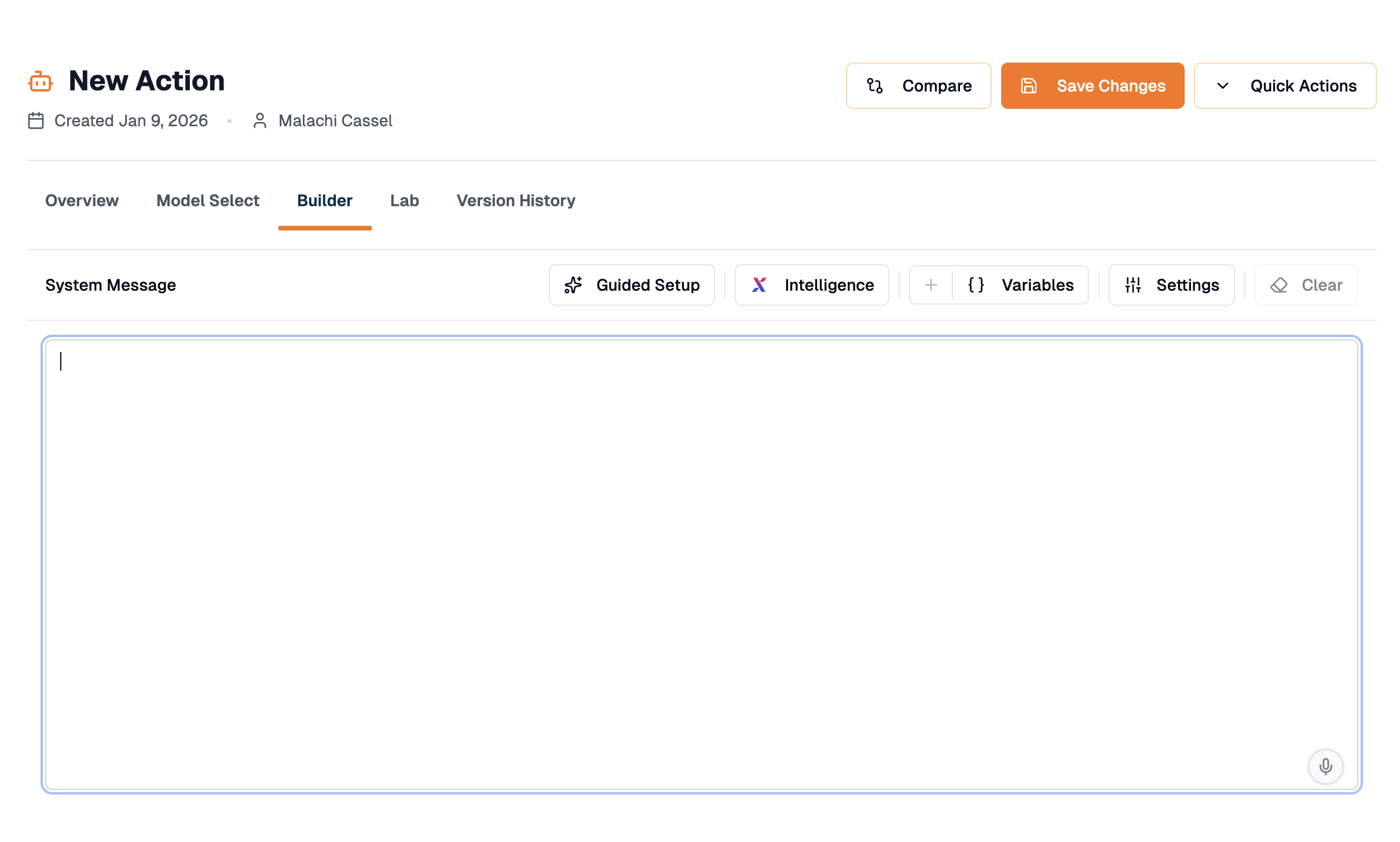
Helpers for drafting
You do not have to start from a blank page.
XSpada Intelligence options include Current Date & Time, Member Identity, and Organization Name and Details. Use them when time-sensitive or personalized answers matter.
Model and parameters
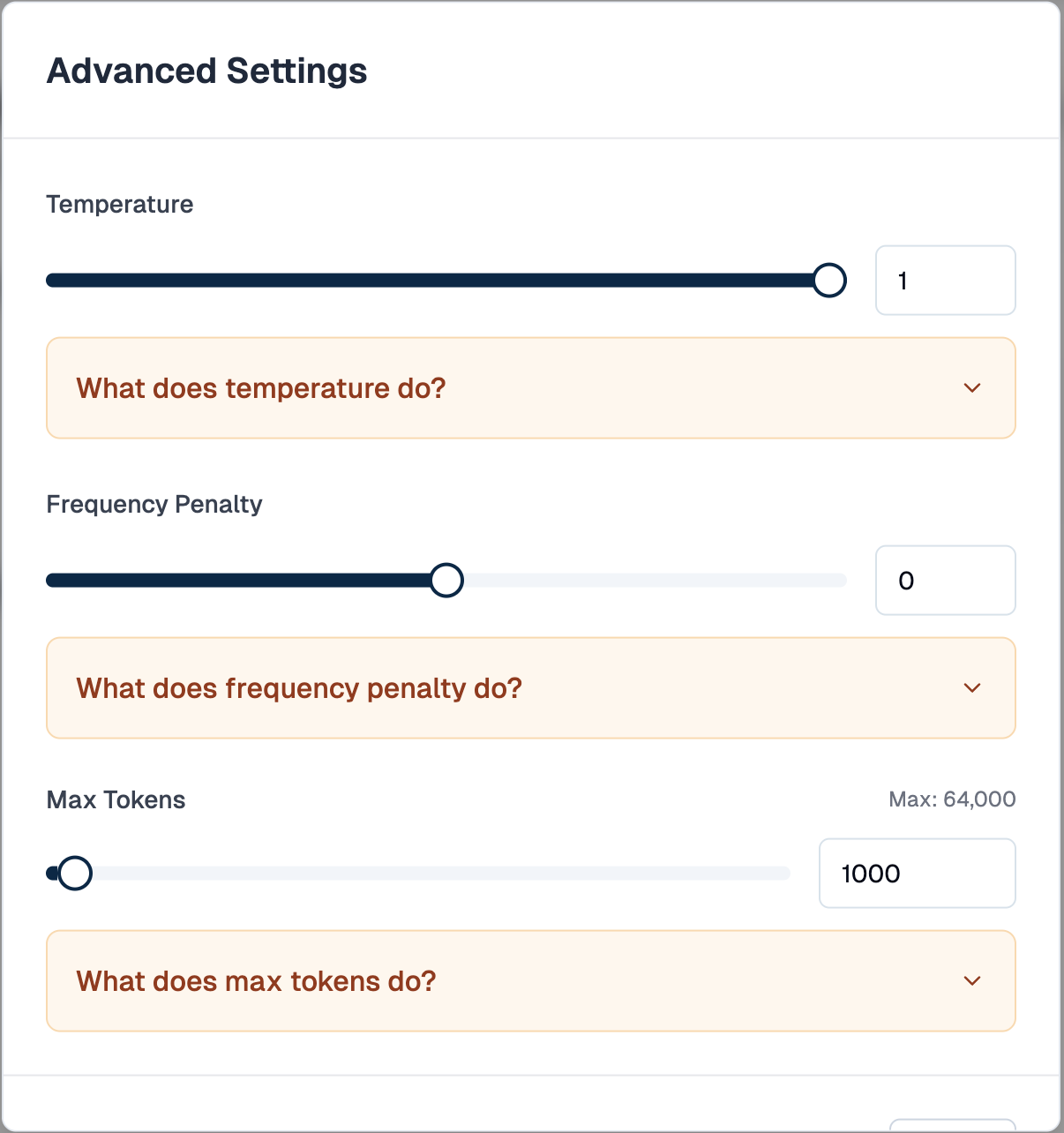
The model is the reasoning engine behind your agent. Different models trade off speed, cost, creativity, and depth. On a new agent, recommended models appear first in Model Select; open filters to browse the full catalog. Parameters fine-tune how the model behaves:
Open Settings in the Builder for advanced controls. Expand the help text on each field for definitions. Saving any configuration change creates a new version — see Versions & testing.
Context usage: watch the budget
The context usage indicator shows how much of the model’s memory window is consumed by instructions, linked files, tools, and conversation history. When usage runs high:- Shorten the system prompt to essentials
- Reduce linked context to only what this agent needs
- Start a fresh chat for long threads
- Consider a model with a larger context window if your use case genuinely requires it
Where to go next
Focus & capabilities
Give your agent the tools to act on its instructions.
Context, files & artifacts
Permanent linked files vs. per-conversation attachments.