
Overview
Almost everything you work with involves files—CSVs, PDFs, Word documents, and more—so you often need to create files or pull data out of them. Files gives you one place to store them so they stay organized and easy to reach.Open the files page
Navigate to Assets in the left sidebar and choose Files. You should see a page like this: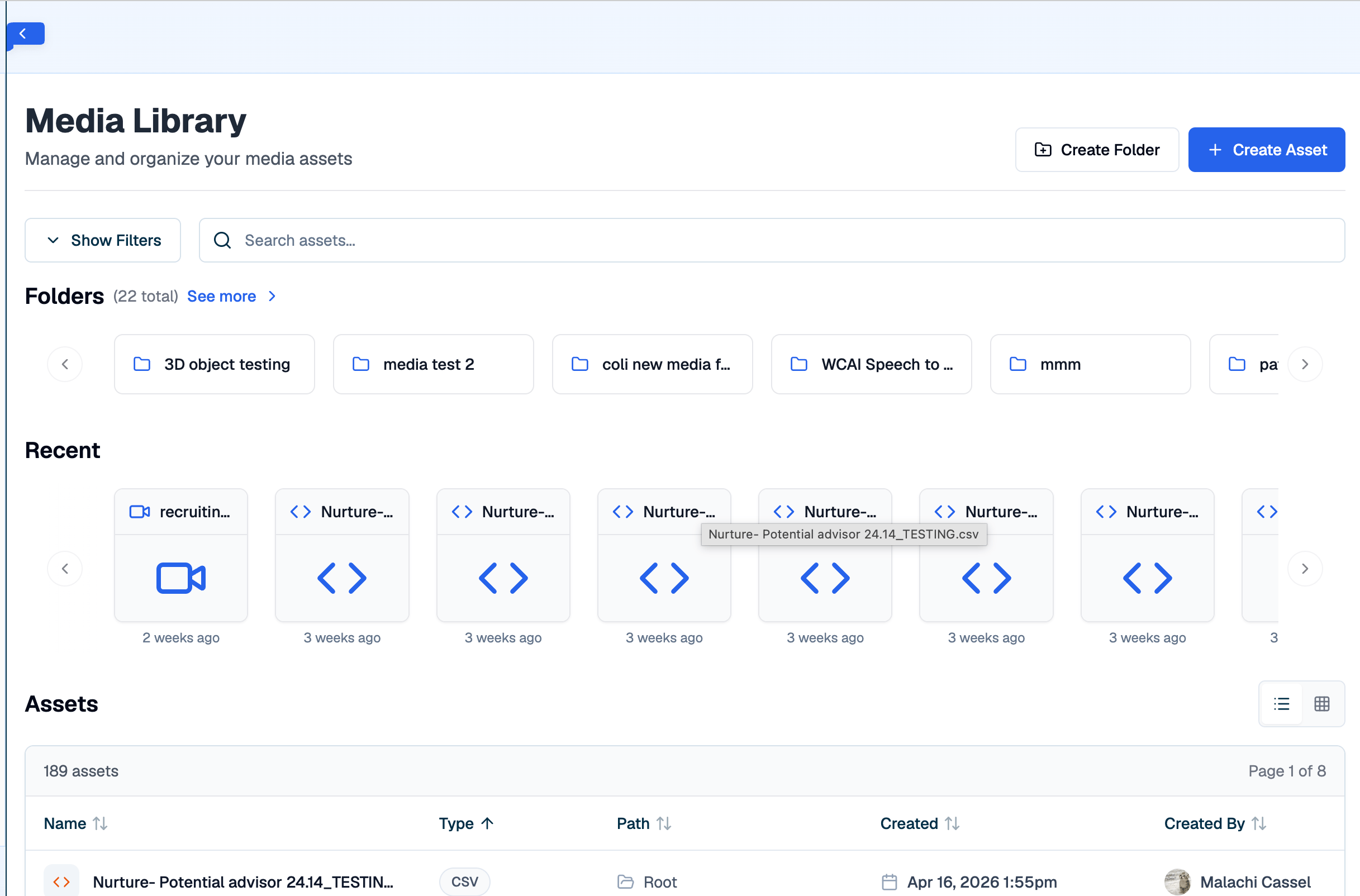
Folders
Folders appear on the first row. To add a folder, click Create Folder in the top right. When you select a folder, you can open it and browse its files, rename it, or delete it. Deleting a folder also deletes every file inside it.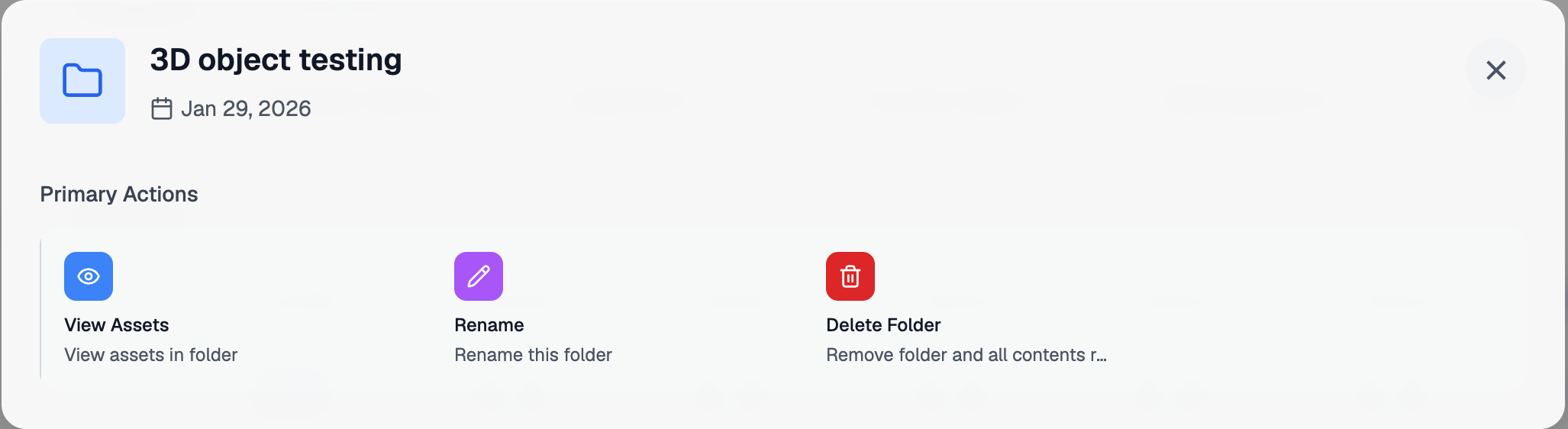
Recent files and sorting
The next row lists your most recently added files so what you use often stays easy to find. Additional files appear below. Click any column header to sort by that column.Add a file
To add a file, click Create Asset and upload or drag in the file you want. It appears in the most recently added row. You can open it like any other file and choose to view it, rename it, move it into a folder, or delete it.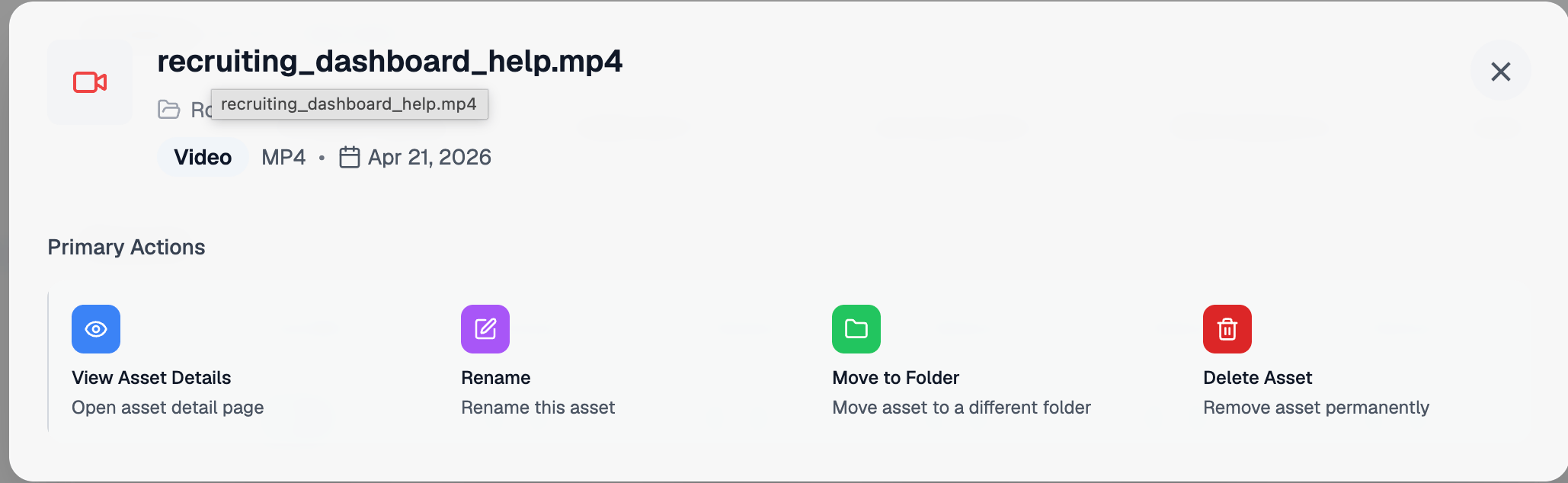
Asset details
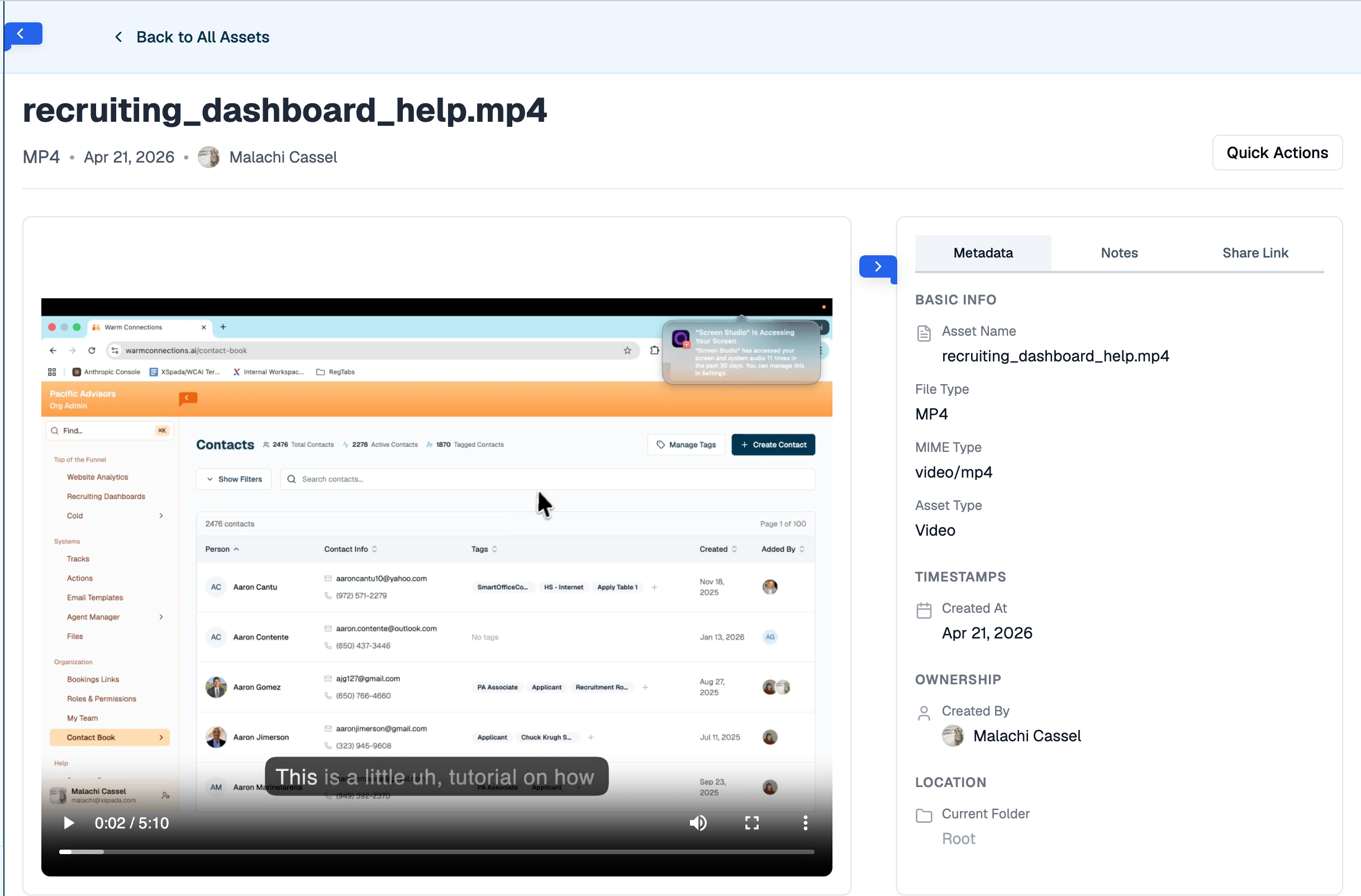
This is what a selected asset looks like when you click View Asset Details: