

Contact Manager is an example of Intelligent Registries applied to people — a people entity type with relationship-focused pages, context capture, tags, and the Intelligence Timeline. In the product sidebar you may still see Contacts under Assets.
Contact Manager overview
To open Contact Manager, click Contacts under Assets in the left sidebar. On the Contact Manager page you see a list of all your contacts. Search with the search bar or use filters for Added by or tags. There are also buttons to add a new contact or open the tag page. The sections below start with adding a new contact.Need help with tags?For more on what a tag is or how to use the tag system, see Contact book or ask the team for details.
Adding a new contact
When you click Create Contact, a form opens. You just have to add the contacts first and last name and either there phone number or there email address.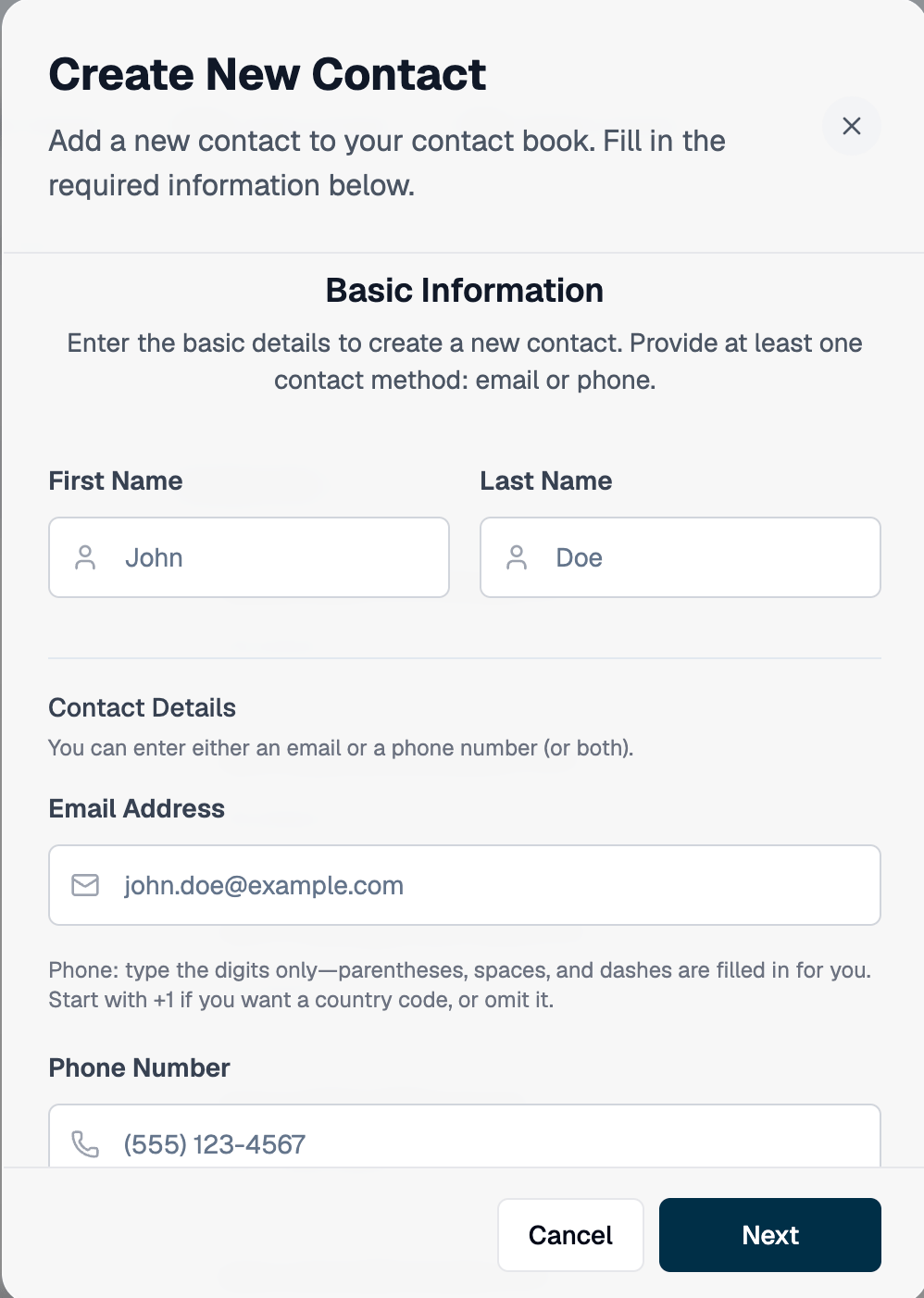
Adding context
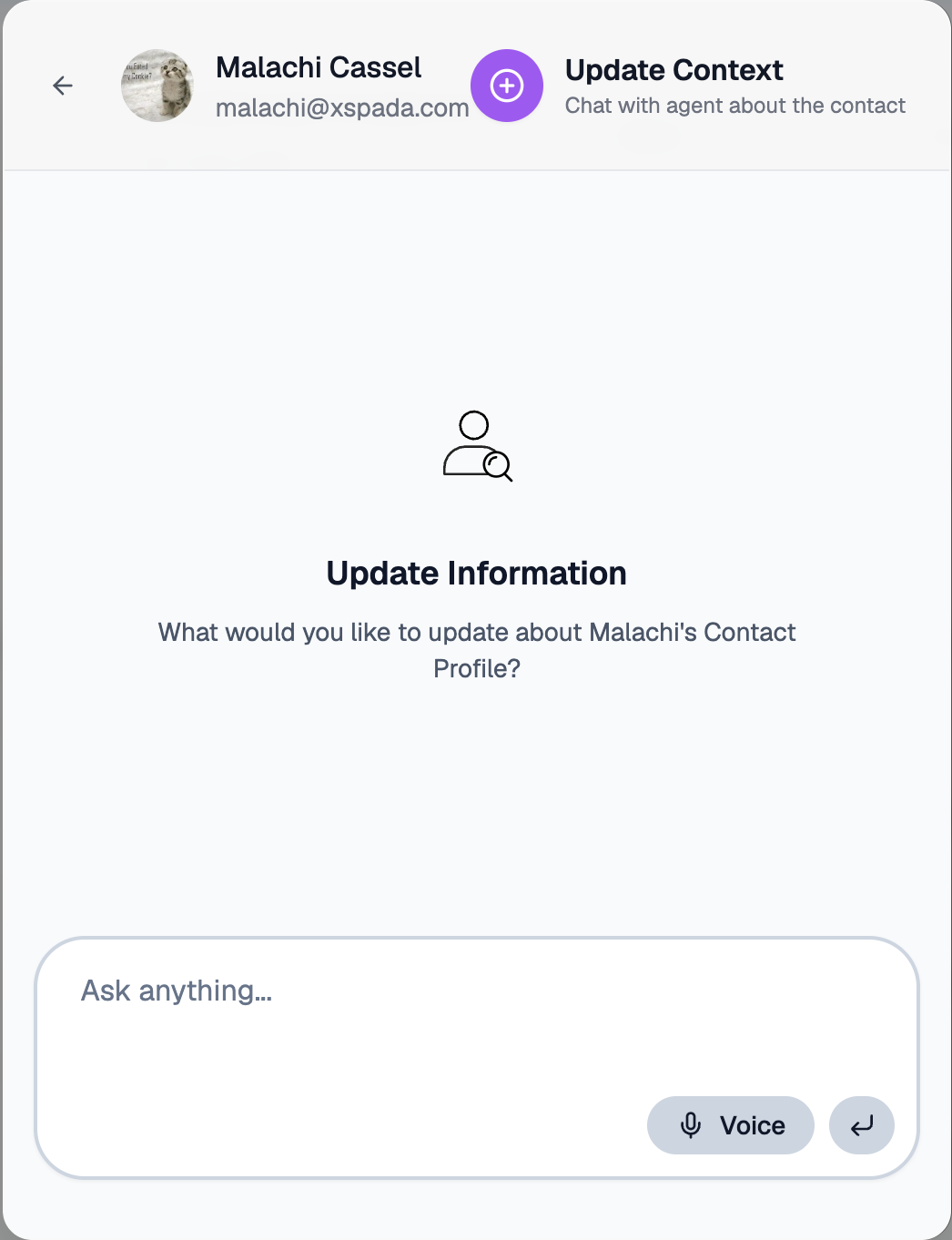
You now have a contact, but name and email or phone alone are limited. Context is extra information that helps you decide how to reach someone, whether they fit a role, and so on. To add context, click the contact and which will open this popup.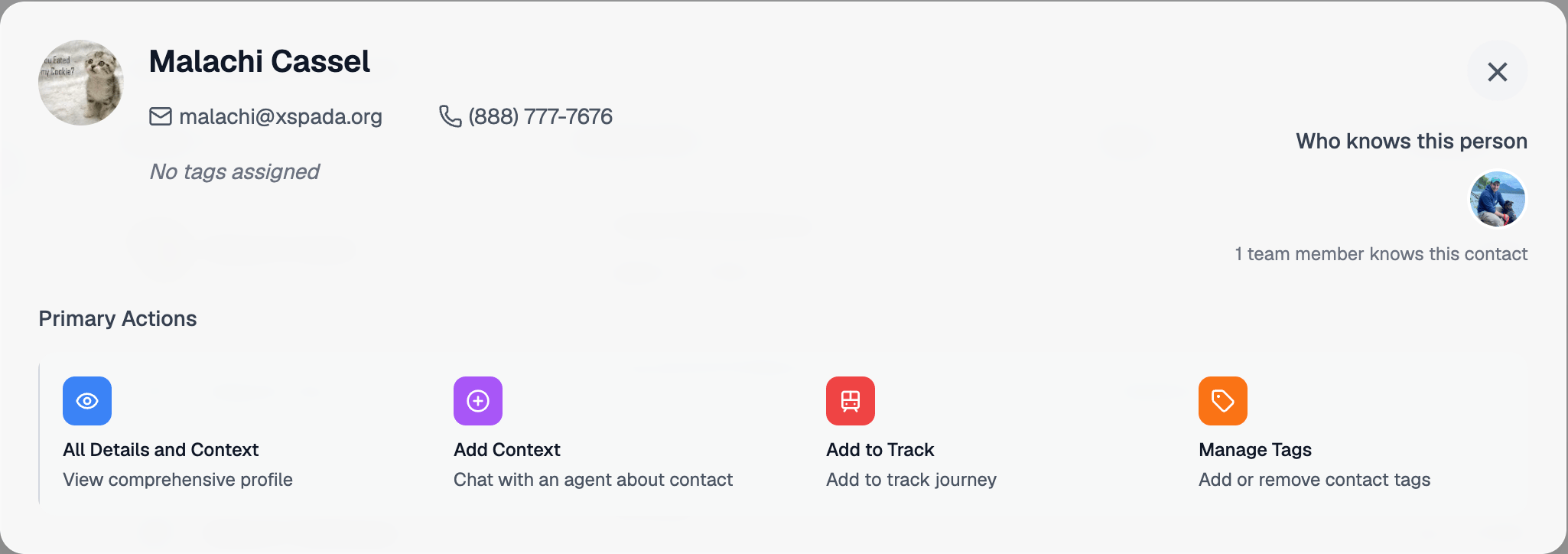
Viewing a contact
To see everything about a contact, click the contact to open the same popup as above. Then choose All Details and Context (far left on the primary action row). You move to a page with full information and context.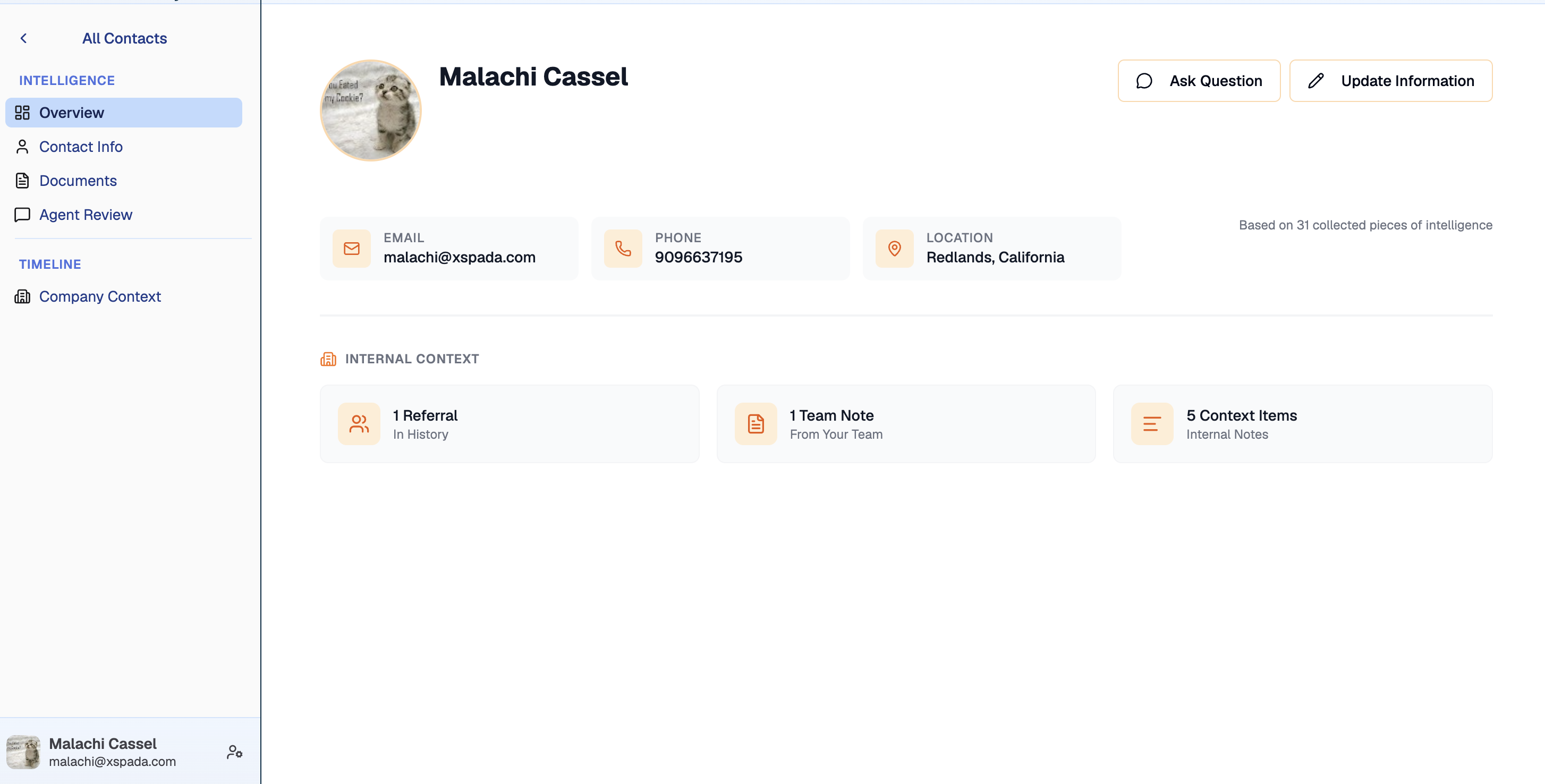
Adding team member to platform
From the main Contact Book page if you are in an administration role you will beable to select a contact and invite that contact to the team by click on the ‘Invite to Team’ button.